


FAX - Send Fax from Phone
4.41.72K Reviews
App Specs
- Version
- 1.4.6
- Updated On
- License
- Free
- Downloads
- 500,000+
- Developer
- Dingtone Phone
- Categories
- Business
- Platform
- Android
Screenshots
 Analysis by AppCompare
A fax app lives or dies by the moment you need it: the document is ready, the deadline is close, and your phone has to reach a service that can deliver it. That makes connectivity more than a background detail. In my view, FAX - Send Fax from Phone is most useful when you treat it as a practical bridge between a digital document and a recipient who still expects a fax—not as a replacement for every way of sharing files.
When the network becomes part of the job
Sending a fax from a phone depends on being online, so a weak signal can turn a simple task into a frustrating one. I’d prepare the document before leaving a reliable connection, then wait until the phone has steady service to enter the recipient details and send. That small bit of planning matters if you are working from a lobby, a train station, or a busy building where reception can fluctuate.
The same caution applies when you are close to a cutoff time. A file that looks ready on your screen still has to travel through the app’s online sending process. I would avoid leaving the scan, recipient number, and first attempt until the last minute. If the fax is urgent, keep the original document and the recipient’s details nearby so you can switch to another method if the connection fails.
Useful on the move, with some preparation
The strongest use case is a person who occasionally handles paperwork away from an office: a small-business owner returning a signed form, a contractor sending a completed document from a job site, or someone dealing with a school or medical office that specifically asks for a fax. In those situations, having the document on a phone can save a trip to a copy shop or a search for a shared fax machine.
For a realistic example, imagine you receive a form by email while you are out, fill it in on your phone, and are asked to fax it back before the office closes. The useful workflow is to check that every page is present and legible, confirm the fax number from the recipient’s own instructions, and send only after you have a steady connection. A confirmation is reassuring, but I would still keep the document and any receipt or status information until the recipient confirms it arrived if the paperwork is important.
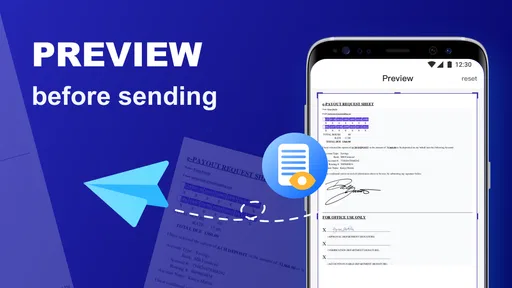
Before relying on a phone scan, look closely at small print, handwritten entries, and signatures. A page can appear readable at normal zoom but become muddy when reproduced as a fax. Retaking a crooked or shadowed image before sending is usually less painful than discovering later that the recipient cannot use it.
Choosing between a fax app and other options
Compared with a physical fax machine, an app avoids finding hardware, feeding pages, and being in the same place as the machine. That convenience is most valuable for occasional sending. A staffed print-and-fax shop can still make more sense when you have a large stack of papers, need help preparing originals, or want a person nearby to check the process.
Worth Reading Before You Choose

Flipboard Shows What News Apps Must Do Beyond the Feed

Switching to Android Auto Means Rethinking Your Driving Routine

Google Calendar Makes a Crowded Week Easier to Manage

Ludo King Makes the Most of the Minutes Between Plans

Baby Panda World Brings Quick Play to Modern Phones, but Its Game Library Feels Busy

ESPN’s Live Game View Makes Following Close Games Easier
Email or a secure document portal is usually easier when the recipient accepts it: you can send a file directly without translating it into a fax workflow. But some organizations still request fax for forms or records, and that is where a phone-based option fills a particular gap. I would not choose fax just because it is available; I would use it when the recipient requires it or when it is the most practical accepted route.
There is also a useful distinction between sending a one-off document and maintaining a regular business fax line. This app is aimed at sending and receiving faxes online, but anyone who needs a permanent, heavily used office setup should compare the app’s current plans and workflow with a dedicated business service before moving all communications over. The free price makes it easy to try, while in-app purchases range from $3.99 to $99.99 per item, so check the purchase details before committing to frequent use.
Reducing avoidable delays and data use
To make a mobile fax less error-prone, I would prepare one clean final file instead of sending several versions while editing. Give the file a recognizable name, review the page order, and check that the recipient number includes the correct country or area details where needed. A cover page can help identify who the fax is for, but it should not reveal more personal information than the recipient needs.
Scanning and sending documents can use mobile data, especially if the file contains several high-resolution pages. If your plan is limited, prepare the document over Wi-Fi and send when connected to a trusted network. Avoid public Wi-Fi for sensitive paperwork when you can use a connection you trust; the priority is balancing convenience with the privacy needs of the document, rather than assuming every available network is equally suitable.
If a send attempt stalls or does not produce the result you expect, first check the network, then verify the number and the file before trying again. Repeatedly resending without checking can create duplicate copies at the other end. For time-sensitive paperwork, keep a backup route in mind—such as calling the recipient to ask whether email or a portal is accepted—rather than assuming every failure is caused by the app.
In practical terms, the app is best for occasional, straightforward fax jobs where you already have a clear digital document and a reliable connection. It is less suitable when you need to process a thick bundle quickly, depend on a fax line all day, or cannot risk delays from mobile reception. Those cases favor a physical machine or a more dedicated office arrangement.
The app is a free business tool from Dingtone Phone, and its audience is broad: it is rated for Everyone, has a 4.4 average from around 4,500 ratings, and has passed 500,000 installs. It was released on July 30, 2020; version 1.4.4 requires Android 7.0 or later. Those details make it easy to judge whether it fits your device and whether you are comfortable trying a service with optional paid items, but the real decision is whether you fax often enough to justify using a mobile workflow.
Getting Started with FAX - Send Fax from Phone
First things first, the FAX - Send Fax from Phone app is available for both Android and iOS users. Downloading it is a breeze; just head over to the Google Play Store or the Apple App Store, and you’re good to go. Once installed, the interface is clean and straightforward, which I appreciate when I’m in a hurry and can’t be bothered with complicated setups.
The app requires you to sign up or log in, but don’t worry, it’s a quick process. You can start sending faxes in no time. Plus, they offer a free trial, which is perfect if you’re still on the fence about committing to a full plan.
Sending Your First Fax
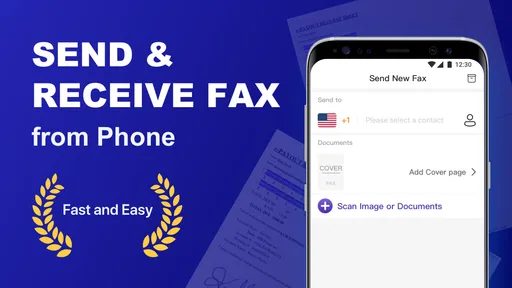
Now, onto the main event—sending a fax. The app allows you to send faxes to over 90 countries, which is super handy if you’re dealing with international clients or businesses. All you need is a digital copy of the document you want to fax. You can easily upload it from your phone’s storage or cloud services like Google Drive or iCloud.
Once your document is ready, enter the recipient’s fax number, and hit send. The app even provides confirmation once your fax has been successfully sent, which is a nice touch. No more wondering if it got lost in the digital ether!
Features Worth Highlighting
One of my favorite features is the ability to add a cover page. It’s a small detail, but it makes your faxes look professional. You can customize it with your company’s logo or a personal message, which can really set you apart.
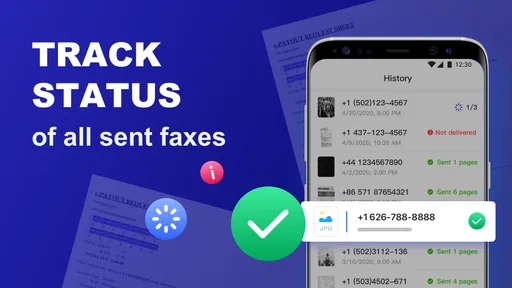
The app also keeps a record of all sent faxes, which is invaluable for keeping track of your communications. Plus, it supports multiple file formats like PDF, DOC, and JPEG, so you’re not limited in how you prepare your documents.
Security is top-notch too, with encryption protocols ensuring your documents are safe during transmission. Given the sensitive nature of some documents, this is a feature that shouldn’t be overlooked.
Usability and Performance
The app runs smoothly, with no noticeable lag or crashes during my trial period. It’s lightweight, so it won’t hog your phone’s resources. I tested it on both Android and iOS devices, and the performance was consistent across the board.
However, it’s worth mentioning that you’ll need a stable internet connection to send faxes, so make sure you’re not relying on spotty Wi-Fi. Also, while the app is user-friendly, having a basic understanding of how faxing works will definitely help you get the most out of it.
Final Thoughts
In a world where everything is going digital, FAX - Send Fax from Phone bridges the gap for those moments when only a fax will do. It’s reliable, efficient, and incredibly easy to use. Whether you’re a business professional or someone who just needs to send an occasional fax, this app is a game-changer.
If you’re tired of dealing with clunky fax machines or don’t have one at hand, this app is definitely worth checking out. With its robust features and user-friendly design, FAX - Send Fax from Phone proves that faxing doesn’t have to be a relic of the past.
Pros
- Easy to use interface for quick faxing.
- Supports multiple file formats for faxing.
- Secure transmission with encryption.
- No physical fax machine required.
- Instant confirmation of sent faxes.
Cons
- May experience occasional delivery delays.
- Requires a stable internet connection.
- Subscription needed for full features.
- Limited free faxes per month.
- Some features are region-restricted.
FAQs for FAX - Send Fax from Phone
What features does the FAX - Send Fax from Phone app offer?
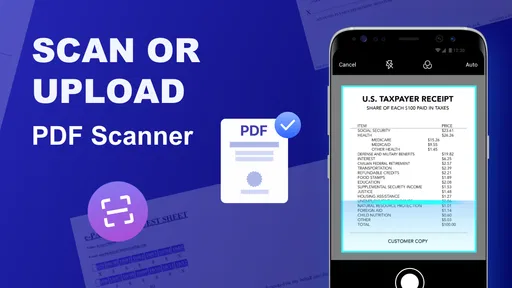
The FAX app allows users to send faxes directly from their smartphones without needing a physical fax machine. Key features include document scanning with your phone’s camera, integration with cloud services like Google Drive and Dropbox, and the ability to send faxes internationally. It also supports multiple file formats and offers a history log of sent faxes.
Is the FAX app secure for sending sensitive documents?
Yes, the FAX app uses encryption to ensure that your documents are sent securely. It complies with industry standards for data protection, making it suitable for sending sensitive information. However, users should always ensure they are sending documents to trusted recipients to maintain privacy.
Are there any costs associated with using the FAX app?
While the FAX app is free to download, sending faxes typically incurs a fee. The app may offer pay-per-fax pricing or subscription plans for frequent users. Prices can vary based on the number of pages, destination, and whether you choose additional features like priority sending.
Can I receive faxes using the FAX app?
Currently, the FAX app primarily focuses on sending faxes. Some versions may offer the ability to receive faxes, but this usually requires a subscription and a dedicated fax number. Users should check the app details or contact support for information on receiving capabilities.
How user-friendly is the FAX app for beginners?
The FAX app is designed with user-friendliness in mind, offering an intuitive interface that guides users through the faxing process. It includes a step-by-step guide for scanning documents and selecting recipients. Additionally, the app provides customer support and FAQs within the app to assist new users.


